


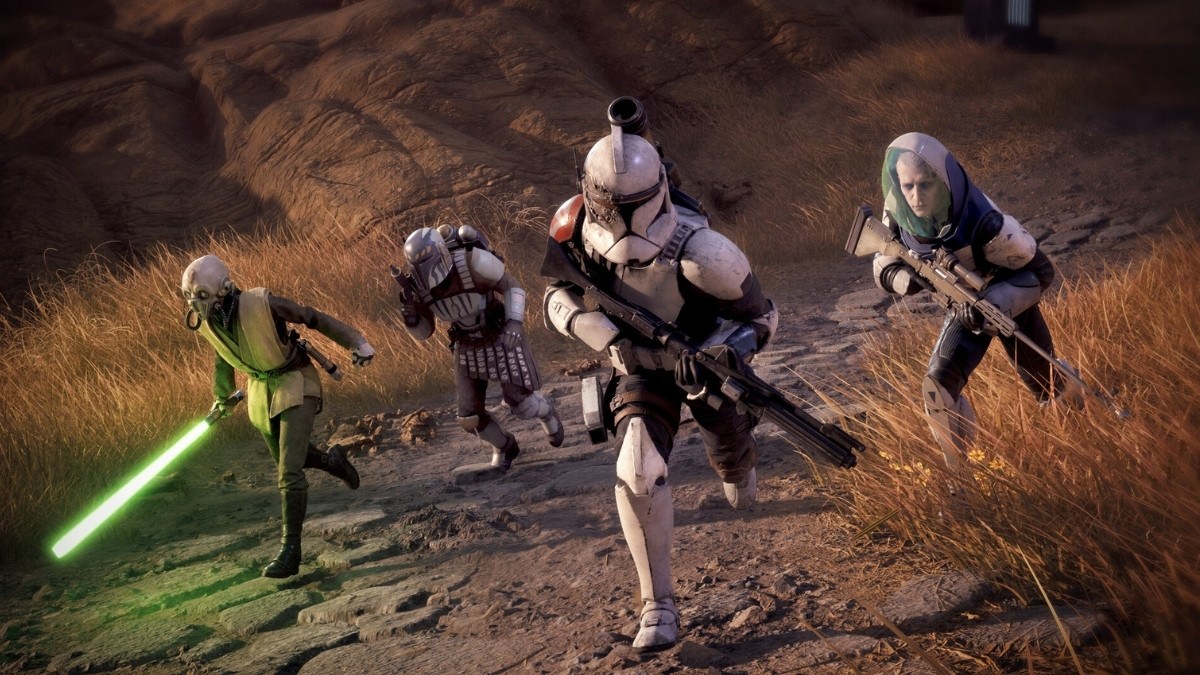

Star Wars Zero Company is a demanding Unreal Engine 5 game, and some PC players have reported stuttering, freezes, and inconsistent frame rates since launch. While the game isn’t particularly fast-paced, stable FPS can make combat and exploration feel much smoother. To help you out, we’ve compiled a list of the best Star Wars Zero Company graphics settings to use if you want to reduce lag and get the most FPS possible.
Best Star Wars Zero Company Graphics Settings
Here is the list of the best graphics settings you can use in Star Wars Zero Company to minimize lag and maximize your FPS:
| Setting | Best Value |
|---|---|
| Windowing Mode | Borderless Window |
| Resolution | Native |
| Frame Rate Limit | Unlimited (Max FPS) or Monitor Refresh Rate (Max Stability) |
| VSync | Off |
| Anti-Aliasing & Upscaling | DLSS / FSR / XeSS |
| Resolution Percentage | 67% (2560 x 1440) 90% (1920 x 1080) |
| Upscaling Quality | Balanced (Better FPS) or Quality (Better Fidelity) |
| Frame Generation | Off (Best Experience) or On (Only For Very Low FPS) |
| Reflex / Anti-Lag | On |
| Overall Quality | Custom |
| Shadow Quality | Low |
| Global Illumination | Low |
| Reflections | Low |
| Post Processing | Low |
| Textures | Ultra (8GB VRAM or More) Medium-High (Less Than 8GB VRAM) |
| Effect Quality | Medium |
| Shading Quality | Low |
| View Distance | Medium |
| Hidden Objects Detail | Simplified |
| Environment Geometry Detail | Off |
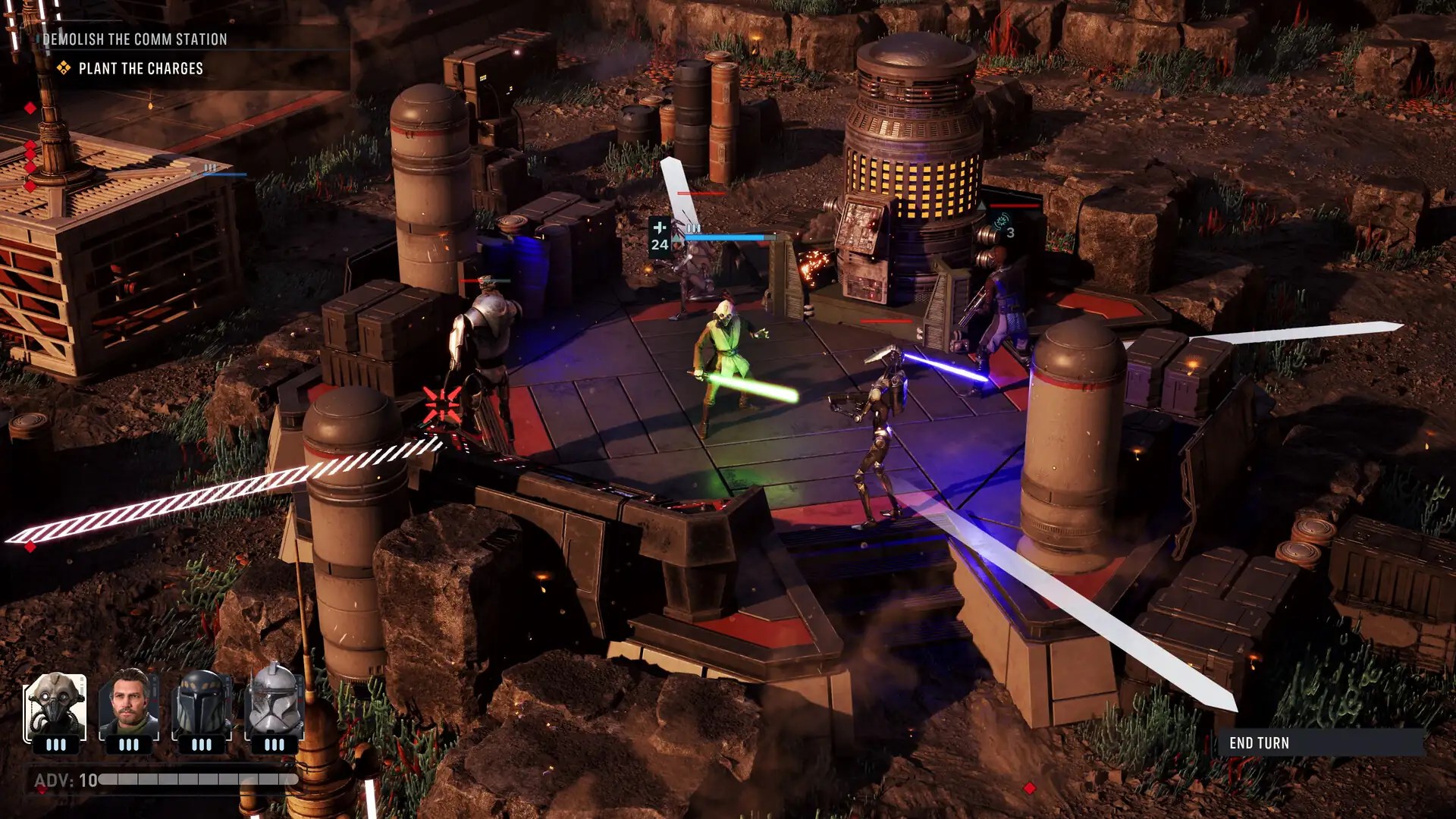
Best Upscaling Settings
Your choice of upscaling should depend on your GPU:
- Nvidia: DLSS
- AMD: FSR
- Intel: XeSS
For 1080p, Quality is generally enough, while 1440p players should start with Balanced. If you’re still struggling to maintain 60 FPS, switch to Performance. Current testing also suggests it’s better to use an upscaler than to run the game at native resolution.
How to Reduce Stuttering in Star Wars Zero Company
If you’re still getting stutters after changing the graphics settings, start by lowering the settings that affect the CPU rather than immediately dropping everything to Low.
Effect Quality and Hidden Objects Detail can have a noticeable impact on CPU performance, while Global Illumination and Reflections are more important if your GPU is the bottleneck. EA has specifically stated that Zero Company is more CPU-bound than typical games, which explains why lowering some GPU-heavy settings may not completely solve stuttering.
Capping the game at 60 FPS is also worth trying. Since Zero Company is a turn-based strategy game, a stable 60 FPS is generally preferable to an inconsistent higher frame rate. The best way to cap your FPS is via the in-game options, though RTSS is also a very good option.
Star Wars Zero Company Graphics Settings FAQ
A: Use Borderless Fullscreen, capped FPS, an upscaler, Low shadows, Low Global Illumination, Low reflections, Simplified Hidden Objects Detail, and Medium Effect Quality for a performance-focused setup.
Q: How do I get more FPS in Star Wars Zero Company?
A: Enable DLSS, FSR, or XeSS, lower the GPU-heavy settings, and reduce CPU-heavy options such as Effect Quality and Hidden Objects Detail.
Q: Should I use Frame Generation in Star Wars Zero Company?
A: Frame Generation can make the game appear smoother if your FPS is really low by default (20-40 FPS), but it isn’t necessary for a stable 60 FPS. Leaving it off also avoids the additional latency associated with generated frames.
These settings should give you a good starting point for Star Wars Zero Company if you’re dealing with low FPS or stuttering. If you want to learn more about this and other popular titles, be sure to check out the Guides category here at Gamepur.



Published: Aug 28, 2026 10:48 am