




Modern Warfare 4 lists both TPM 2.0 and Secure Boot as required to play on PC, and many players will need to turn at least one of them on. If your PC is not set up yet, here is how to enable TPM 2.0 and Secure Boot for Modern Warfare 4, starting with how to check your current status.
Does Modern Warfare 4 Require TPM 2.0 and Secure Boot?
Yes, Modern Warfare 4 requires both TPM 2.0 and Secure Boot on PC, according to Activision’s support page. Activision also notes that other security measures may be enforced, and its TPM guide asks for Windows 10 version 22H2 or later, or any version of Windows 11.
How to Check If TPM 2.0 and Secure Boot Are Enabled
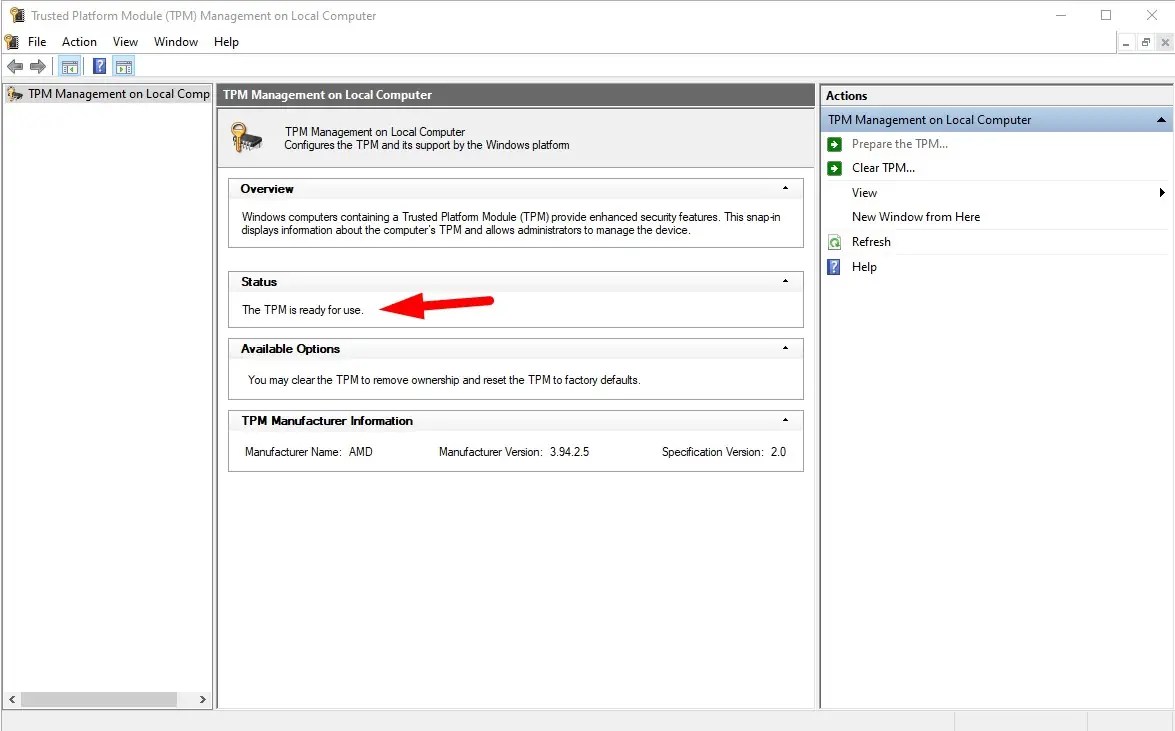
Before you change anything in your BIOS, check what your PC already has, because Activision notes that Windows 11 PCs likely have both features turned on. Two built-in Windows tools show the status of each setting, and the steps below tell you what the result should say:
- TPM: Press Windows key + R → type “tpm.msc” → press Enter. The status should read “The TPM is ready for use.”
- Secure Boot: Windows key + R → type “msinfo32” → press Enter. BIOS Mode should read UEFI and Secure Boot State should read On.
How to Enable TPM 2.0 and Secure Boot for Modern Warfare 4 in BIOS
If either check fails, you need to change a setting in your PC’s UEFI firmware, and Activision warns that incorrect BIOS changes can cause system issues. The menu names depend on your motherboard, so check your manual if a setting is missing. Here are the steps:
- Restart into UEFI. On Windows 11, go to Settings > System > Recovery and select Restart now under Advanced startup. On Windows 10, go to Settings > Update & Security > Recovery.
- After the restart, select Troubleshoot > Advanced Options > UEFI Firmware Settings.
- Open the Advanced, Security, or Trusted Computing tab. On Intel, enable Intel PTT or Security Device Support. On AMD, enable AMD CPU fTPM.
- Open the Boot tab and set Secure Boot to Enabled, with Boot Mode set to UEFI instead of Legacy or CSM.
- Save and exit, usually with F10, then restart and run both checks again.
Modern Warfare 4 TPM 2.0 and Secure Boot FAQ
A: No, Activision lists TPM 2.0 and Secure Boot as required to play.
Q: What if the Secure Boot option is greyed out?
A: Confirm that UEFI mode is selected, then save, reboot into the BIOS, and check again. Secure Boot also needs a GPT drive, and Activision’s guide covers converting MBR with Microsoft’s MBR2GPT tool.
Q: Is there a tool to check my PC?
A: Yes, Activision offers the Call of Duty Secure Attestation Wizard, which scans your PC and shows which settings need updating.
Well, that covers all you need to know regarding how to enable TPM 2.0 and Secure Boot for Modern Warfare 4 on PC. If you found this post helpful and want to learn more about the game and other titles, including the Modern Warfare 4 system requirements, be sure to bookmark Gamepur!












Published: Oct 18, 2026 06:42 am